
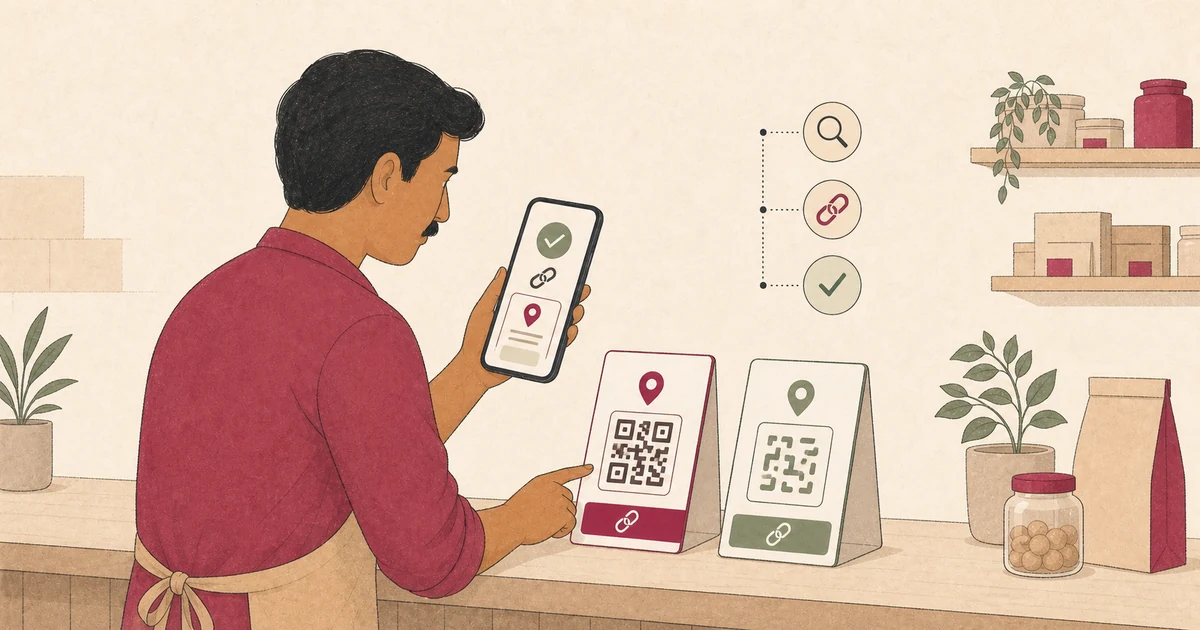
A Google review link removes the need for a customer to search for your business and wonder whether they found the correct listing.
Its QR code turns that same destination into something a customer can scan from a bill, counter card, package insert, or reception sign.
The setup is short, but the details matter. You need access to the right Business Profile, the official destination, a readable print file, and a test that confirms the correct branch opens.
This guide takes an Indian local business from profile access to a labelled, tested link-and-QR kit. It does not cover where to place every card or how to write each request; those are separate operational decisions.
Check access before creating anything
Start with the Google Account that is authorised to manage the business. Search for the business name and city while signed in, then confirm the address, phone number, category, and branch shown on the profile.
If the business is not yet under your control, use Google's instructions to add or claim the Business Profile.
Google says an eligible business can be added or claimed at no charge. It must then complete one of the verification options Google makes available for that profile.
Verification methods depend on the business type, region, public information, and other factors. Follow the options shown in your account instead of assuming that another branch's method will be available.
Google's verification guide also says you must be signed in to the Google Account associated with the profile to find and manage it.
Do not solve an access problem by sharing one person's password. Google allows profile owners to invite owners or managers, and each person can use their own Google Account.
Its owner and manager guidance says both roles can manage the profile on Search and Maps. Owners retain extra controls such as adding or removing users.
For a single cafe, the owner and one trusted manager may be enough. A salon chain should give access only to people who need it and record who owns the review assets for each branch.
Create the official Google review link
Use a computer browser. Google's current instructions say the review QR code cannot be generated on a mobile device.
Then follow this sequence:
- Open the correct Business Profile while signed in.
- Select Read reviews.
- Select Get more reviews.
- In the sharing panel, select Copy beside the review link.
- Paste the link into a plain internal record before sending it anywhere.
These steps come from Google's current review link and QR code instructions. Interface wording can change, so use the official page if the labels differ.
Give the record a name that another person can understand. “Google review link” is not enough when a business has several outlets.
Use a label such as “Aruna Cafe — Indiranagar — Google review link — checked 7 August 2026”. Store the public address and an asset owner beside it.
Do not shorten, rewrite, or rebuild the destination unless there is a genuine operational reason and someone will maintain that extra layer. The official link is the simplest source to test and hand over.
Save the matching QR code without altering it
In the same Get more reviews panel, right-click the QR code and choose Save image as. This is Google's documented download method.
Use a filename that matches the link record, such as aruna-cafe-indiranagar-google-review-qr-2026-08.png. Keep the original file as a master and make print copies from it.
Avoid placing a logo, words, or decorative shapes over the code. DENSO WAVE, the QR Code developer, warns that overlays and nearby artwork can make a code difficult or impossible to read.
Its printing guidance calls for a clear “quiet zone” four modules wide on every side. Preserve that empty border when a designer places the code on a card.
High contrast and a clean edge are more important than decoration. Do not crop the code tightly, stretch it unevenly, or recolour it without testing the exact exported file.
At this stage, keep the card wording neutral. A simple label such as “Share an honest Google review” tells the customer what the scan opens without asking for praise or a particular rating.
Test the complete customer journey
A file that scans on the designer's screen may fail after it is resized, printed on a thermal receipt, placed behind reflective laminate, or photographed in weak light.
Test the journey, not just the square:
- Open the copied link in a private browser window.
- Scan the original QR file from a different phone.
- Print a sample at its intended size and scan the paper.
- Check the sample in the lighting where customers will see it.
- Confirm the business name, locality, and branch before proceeding.
- Stop before submitting a review; the test is only for the destination.
Try at least one Android phone and one iPhone if your team has access to both. This is an operational test, not a promise that every device or camera will behave identically.
Google says customers must be signed in to a Google Account to leave a review. Its review guidance notes that the account can use a non-Gmail email address.
Do not collect a staff review as a test. Employees and other people with a professional conflict should not review the business. Confirm the flow and close it before posting.
If the wrong outlet appears, discard the asset. Return to the profile, verify the address and branch, and create a new labelled record from the correct profile.
Keep branch links separate in a multi-location business
A customer in Koramangala should not land on a similarly named outlet in Whitefield. Branch accuracy is part of the setup, not something to fix after thousands of cards are printed.
Create a small register with one row per location:
- public business name and locality;
- Business Profile address;
- official review link;
- QR master filename;
- asset owner;
- last test date; and
- every place that uses the asset.
Open each branch profile separately and retrieve its link from that profile. Do not copy one branch's file into another branch's print folder because the names look similar.
For a larger team, Google recommends business groups for managing multiple profiles and sharing access with co-workers. Its business group guidance explains the access model.
That does not replace the link register. The register connects each public-facing card, receipt template, and message to its intended profile, so a team knows what to retest after a change.
Before sending files to a printer, ask a second person to scan every branch sample and read the destination aloud. A two-person check is inexpensive compared with recalling incorrect table cards or package inserts.
Ask for reviews without controlling the outcome
Creating the path does not give a business control over what a customer posts. Google's Maps content policy prohibits incentives, pressure, selective access, and prescribed wording.
Google's setup page says reviews must reflect genuine experiences. It also prohibits free or discounted goods or services in exchange for posting, changing, or removing a review.
Do not print “Scan for five stars”, promise a discount, or show the QR code only after a customer gives a high private score. Do not ask staff to stand over the customer while they post.
Use the same neutral opportunity for eligible customers. Private feedback can sit beside the public option, but it must not become a gate that hides Google from customers expected to be critical.
Yeeto's guide to asking for Google reviews responsibly explains the policy boundary in detail.
The customer chooses whether to scan, what rating to leave, what words to use, and whether to publish. Your setup should reduce confusion without reducing that control.
Fix common setup problems
If Get more reviews does not appear, first confirm that you are signed in to the account that manages the exact profile. Then check whether the profile has been claimed and verified.
If you are working only from a phone, move to a computer browser for the QR download. Google currently documents review QR generation as a computer-browser task.
If the link opens but the code does not scan, return to the original image. Restore the clear border, remove overlays, increase the printed size, improve contrast, and test a fresh print.
DENSO WAVE's troubleshooting examples show that distorted modules, missing margins, and overlapping letters or pictures can prevent reliable reading.
If a code works on screen but not on a bill, inspect the physical result. Thermal print density, folds, smudges, curved packaging, glare, and a very small code are all reasons to change the production design and test again.
If a staff member cannot access the profile, add them through Google's people-and-access controls. Do not send a password or verification code over WhatsApp or place it in the asset register.
Maintain one trusted source
Keep one master folder and one register rather than letting every branch create its own code. Mark old files as retired when they are replaced so a vendor does not reprint an outdated version.
Run a short monthly check and after any profile, ownership, or print-template change:
- Open every saved link.
- Scan one physical sample from each live format.
- Confirm the location and business name.
- Check that the request wording remains neutral.
- Update the test date and owner.
Do not promise that a review link or QR code will produce a particular number of reviews, rating, ranking, or revenue result. It removes a navigation step; the customer and Google control what happens after that.
Next step
Create the official link and QR code for one location, label both files, and test the final printed sample from a customer phone. Expand only after the first path is reliable.
Then use a consistent review QR code workflow to manage the customer-facing request. Keep the official Google destination, the printed asset, and the branch register connected.
Yeeto Review App can provide a separate branded QR code or link that helps customers organise feedback they can edit, approve, copy, or leave private.
Use that assistance with the same boundary: the customer supplies the experience, controls the words, and decides whether anything is shared publicly.