
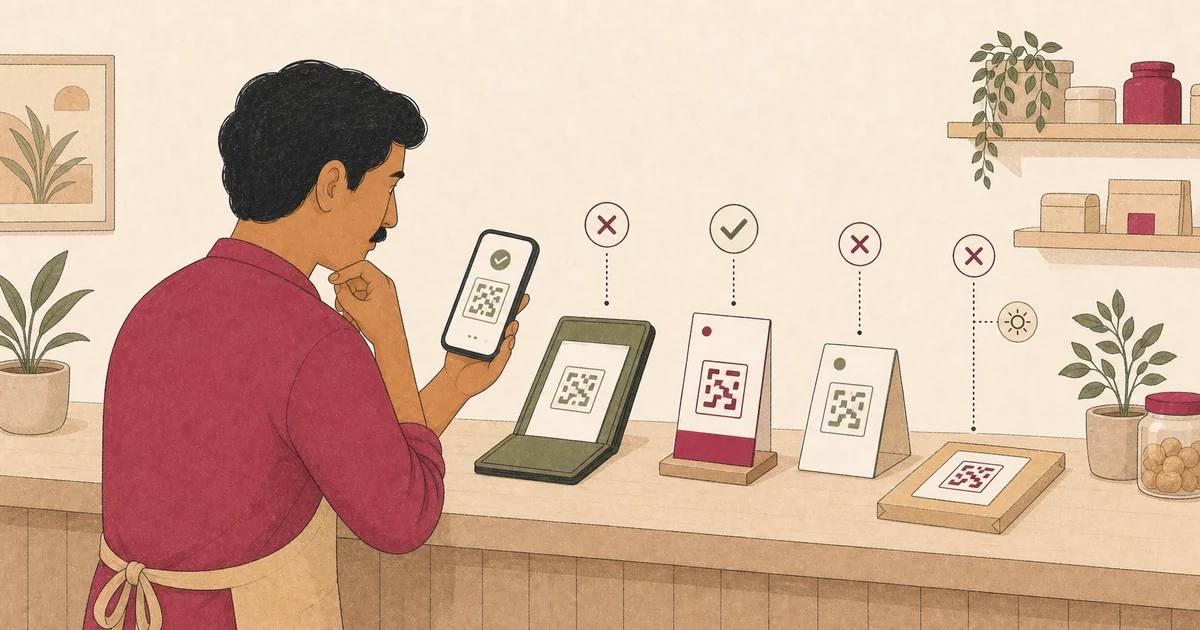
A Google review QR code can work perfectly and still sit in the wrong place. A tiny code at the bottom of a faded bill, a card hidden behind the counter, or a sign watched by a staff member creates friction instead of removing it.
The right placement appears after a real customer experience, is easy to notice and scan, and gives the customer room to decide privately. It also survives the lighting, printing, cleaning, and handling conditions around it.
This guide helps Indian restaurants, cafes, salons, clinics, retailers, and home-service teams choose useful touchpoints. It assumes you already have the correct branch link and QR code.
Choose the customer moment before the surface
Start with the end of the experience, not with an empty patch of wall. The customer should have enough experience to write an honest review, and the request should not interrupt service or delay payment.
For a dine-in restaurant, that moment may be when the bill folder arrives. For a takeaway counter, it may be after the order is handed over. A salon client may prefer a small exit-desk card that can be photographed and used later.
A home-service customer is rarely helped by a QR sticker on a technician's toolbox. A leave-behind card or completion message is easier to use after the customer has checked the work.
Write down three things for each service journey: when the experience is complete, where the customer naturally pauses, and whether they can scan without an employee waiting for an answer.
Apply four tests to every proposed placement
A useful location passes four tests.
- Relevant: The request appears after a genuine experience with the business or branch.
- Visible: The customer can notice it without searching through clutter or turning over unrelated material.
- Scannable: The final printed code has enough contrast, clear space, and physical stability for an ordinary phone camera.
- Comfortable: The customer can ignore it, save it for later, or scan without being watched or holding up a queue.
Google's official review link and QR code guidance suggests receipts, thank-you emails, the end of a chat, and an in-store display.
Treat those as options to test, not proof that every surface will suit your business.
Do not choose a placement only because it is close to the till. A payment counter may be busy, crowded with UPI signs, or under staff observation. Context and customer control matter as much as visibility.
Put receipt and bill codes where printing stays clear
A bill folder gives a restaurant guest time to notice a card without covering payment information. Place the request on a separate insert or a stable printed panel, not across the amount, tax details, or payment QR.
Thermal receipts need extra care. DENSO WAVE explains that QR readability depends on the printed module size, printer resolution, and reader capability.
It recommends printing the code as large as practical within the available area.
Do not rely on a universal centimetre rule. Print the actual receipt from every live printer, then scan it before the paper fades, folds, or curls.
If the result is unreliable, move the request to a bill-folder insert or a digital follow-up.
Keep neutral wording beside the code, such as “Share an honest Google review when convenient.” Make it clear that the review is optional and separate from payment, loyalty points, discounts, or complimentary items.
Give counter and reception cards breathing room
A counter card works when it faces the customer, stays upright, and does not compete with several other codes. Give the Google review request its own label so it cannot be confused with a payment, menu, catalogue, or check-in action.
Place it where a person can step aside after service rather than blocking the next customer. At a busy Bengaluru cafe, that may be the pickup-end shelf, not the ordering till.
At a clinic, it may be an exit desk rather than the check-in queue.
Avoid placing the code where staff must hand it over and wait.
Google's Maps policy says merchants must not require or pressure customers to leave a rating or review while on the premises.
Train staff to use one neutral line: “There is an optional feedback card here if you would like it.” They should not ask for five stars, request a named mention, or watch the customer submit.
Use table cards only after the main experience
A table card can suit a cafe or casual restaurant when it remains available without interrupting the meal. Put it on a stable, clean surface and keep it away from spills, condiment clutter, and reflective covers.
Do not make the review request the first thing a guest sees before ordering. A small prompt near the bill side of a tent card is better aligned with a completed experience.
DENSO WAVE requires a clear margin, or quiet zone, four modules wide around every side of the symbol. Preserve that border when placing the code inside artwork, and do not crowd it with icons or text.
Its QR printing guidance supports the margin requirement.
Its technical FAQ also warns that glare, transparent material, distortion, and overlays can make a code difficult to read.
For more dine-in, takeaway, and delivery context, use Yeeto's restaurant feedback guide to match the request to the actual service moment.
Match package inserts and service cards to completion
A retailer can add a flat card inside a parcel or shopping bag. Use a white-backed insert rather than printing directly on glossy, transparent, curved, or easily crumpled packaging.
The request should describe the relevant experience. A store-pickup customer can review the collection process after receiving the order. A delivery customer should not be asked to review an item or service before it arrives.
For home services, leave a small completion card only after the customer has inspected the work. Keep addresses, schedules, invoice details, access instructions, and household information away from the public-review prompt.
If there is no sensible physical pause, use an expected post-service link instead. Yeeto's home-service guidance explains how to follow up after completion while protecting private details.
Avoid placements that create pressure or confusion
Reject a placement if it does any of the following:
- forces the customer to scan before paying, collecting an order, or leaving;
- sits only inside a “happy customer” path after a high private score;
- appears beside “five-star”, reward, discount, or contest language;
- covers important bill, safety, care, warranty, or return information;
- mixes the review code with an unlabelled payment QR code;
- requires a staff member to hold the card or observe the screen;
- sends different branches to one location without a clear reason; or
- becomes unreadable when folded, cleaned, laminated, or exposed to glare.
Google permits neutral requests based on real experiences. It prohibits incentives, selective requests for positive reviews, prescribed content, staff review targets, and pressure.
Yeeto's guide to asking for Google reviews responsibly covers those boundaries in detail.
Test the physical placement with real devices
Do not approve a design from a PDF alone. Print or install one real sample at the intended size and location.
Then run this test:
- Scan from the position where a customer will stand or sit.
- Try the ordinary lighting at a busy and a quiet time.
- Use at least two phones available to your team.
- Confirm that the correct business name and branch open.
- Check that the prompt is visible without covering service information.
- Ask a colleague to ignore the code and confirm that nothing blocks their journey.
- Stop before posting; staff should not create test reviews.
Do not promise that a placement will produce a review count, rating, ranking, or revenue result.
Google says customers must sign in to a Google Account to post. Its review best practices encourage businesses to value honest and balanced feedback.
Keep a placement register for every branch
Record each live location in a simple register: branch, surface, wording, destination, asset version, owner, install date, and last test date. Add a photo that shows the placement without including customers or personal information.
Retest after moving furniture, changing a receipt printer, replacing laminate, revising packaging, or updating a branch profile. Remove retired cards so a vendor or manager cannot put an old destination back into use.
Review the register monthly. Scan one physical example of every live format, confirm the destination, inspect wear and glare, and check that the wording remains neutral.
Next step
Choose one service journey and one placement this week. Test the real surface with real phones, observe whether a customer can use or ignore it comfortably, and fix the physical path before printing more copies.
Use a consistent review QR code workflow to connect the approved destination, placement, wording, and maintenance owner.
Yeeto Review App can provide a branded QR code or link for a customer-feedback request at a counter, table, bill, package, or follow-up. The customer supplies the experience, controls the wording, and decides whether anything is shared.